USB Wired Gaming Headset: 7.1 Surround + Detachable Mic
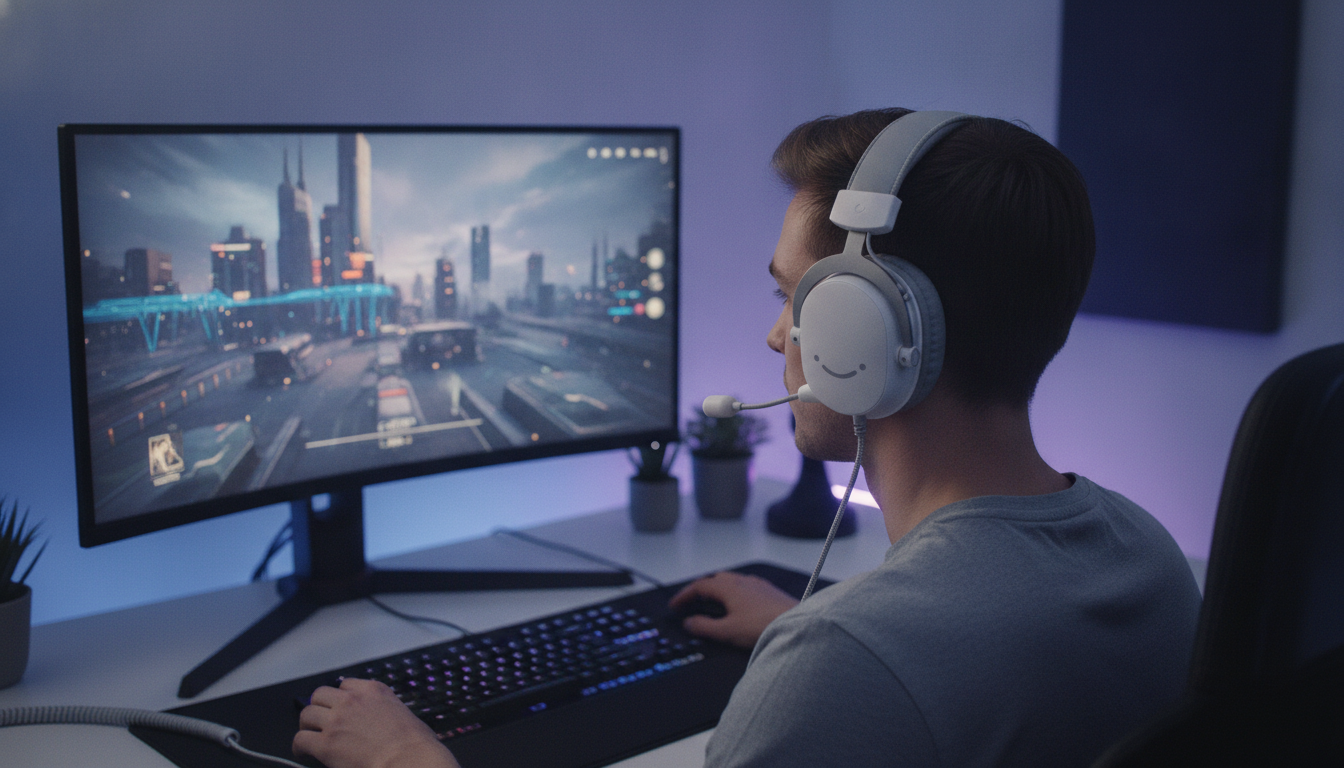
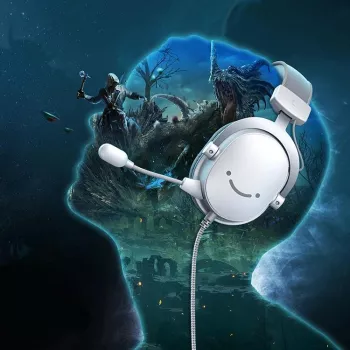
USB Wired Gaming Headset with 7.1 Surround Sound and Detachable Microphone
A USB wired gaming headset keeps your setup simple while delivering consistent audio, clear voice chat, and dependable power for features like surround processing. If you’ve dealt with crackly front-panel jacks, finicky splitter cables, or wireless battery stress mid-match, USB audio can feel like a reset: one connection, repeatable settings, and straightforward control. Below is what to expect from a “7.1” surround-style experience, why a detachable microphone fits different playstyles, and how to dial in clean sound on PC and check compatibility for console sessions. For more guidance, see best gaming headphones – Rice University.
What a USB wired headset changes compared with 3.5 mm options
Traditional 3.5 mm headsets rely heavily on whatever sound hardware you plug into—motherboard audio, a laptop combo jack, a controller, or a monitor port. A USB wired headset shifts more of the work into the headset’s own USB audio chipset. For further reading, see Akko Verge S9 Ultra REVIEW – FPS Optimized – audioreviews.org.
- Single-cable connection: On many PCs, USB handles both audio output and mic input without separate splitters.
- More consistent digital audio: Because the audio stays digital until it reaches the headset, you can avoid some variability between devices and noisy analog jacks.
- Controls and processing via USB: Inline controls, surround effects, and sometimes EQ are handled by headset firmware/software rather than your motherboard sound card.
- Compatibility trade-off: Some consoles/controllers don’t support USB audio the same way a PC does, so it’s worth checking support before buying specifically for console use.
7.1 surround sound in games: where it helps most
Most “7.1” gaming headsets create a virtual surround field using software or onboard processing. The goal isn’t to add volume—it’s to improve spatial cues and separation so you can more easily tell where sounds come from.
- Footstep positioning: In shooters with good spatial mixing, virtual surround can improve left/right and front/back cues—especially when you’re tracking movement across rooms or around corners.
- Clarity in chaotic scenes: Separates ambient noise, reloads, ability cues, and voice lines so nothing becomes a single wall of sound.
- Single-player immersion: Open-world ambience and cinematic sequences often feel wider and more “room-like” with surround engaged.
- Avoid stacking effects: Best results usually come from enabling one surround solution at a time (either the headset’s surround or Windows/game spatial audio), not multiple layers that can smear imaging.
Surround setup quick choices
| Scenario | Recommended setting | Why it works |
|---|---|---|
| Competitive shooters | Moderate surround + balanced EQ | Keeps imaging clear without over-widening effects |
| Story games | Surround on + slightly boosted bass | Enhances ambience and impact |
| Voice chat focus | Surround off or low + mids forward | Makes teammates easier to understand |
Detachable microphone: practical advantages for gaming and daily use
A detachable mic sounds like a small convenience until you live with it. Being able to remove the boom changes how the headset fits into your day—gaming at night, music during work, or packing a bag for travel.
- Cleaner storage and travel: Detaching the mic reduces snagging and the risk of bending the boom in a backpack.
- Switch between modes: Attach the mic for ranked sessions, then remove it for movies or single-player without a mic in your peripheral vision.
- Replacement potential: If the headset supports compatible mic modules, you can replace the mic rather than the entire headset.
- Better positioning: Aim the mic near the corner of your mouth instead of directly in front to reduce breath noise and popping.
Comfort and build details that matter in longer sessions
Setup for PC (Windows): clean audio, clear voice, and stable levels
Fast troubleshooting checklist
| Issue | Likely cause | Fix |
|---|---|---|
| Teammates hear echo | Monitoring or duplicated inputs | Disable “Listen to this device”; confirm the correct chat app input device |
| Mic is too quiet | Low input gain | Increase mic level; move mic closer to the mouth corner |
| Audio sounds flat | Wrong device profile or stacked surround | Select the correct output; use only one surround/spatial option |
| Random disconnects | Hub/power instability | Use a rear motherboard USB port; reroute cable away from tension points |
Console and laptop considerations
Who this headset style is best for
In-stock picks and useful add-ons
- USB Wired Gaming Headset with 7.1 Surround Sound and Detachable Microphone ($50.51)
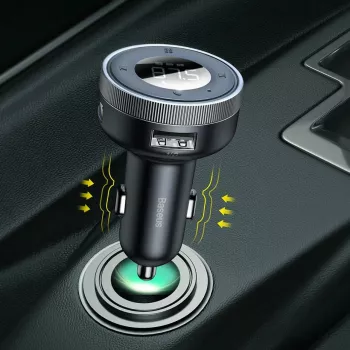
- Magnetic 15W Wireless Car Charger & Phone Mount for iPhone 16–13 ($34.01) — convenient for keeping your phone charged for authenticator apps and comms on the go
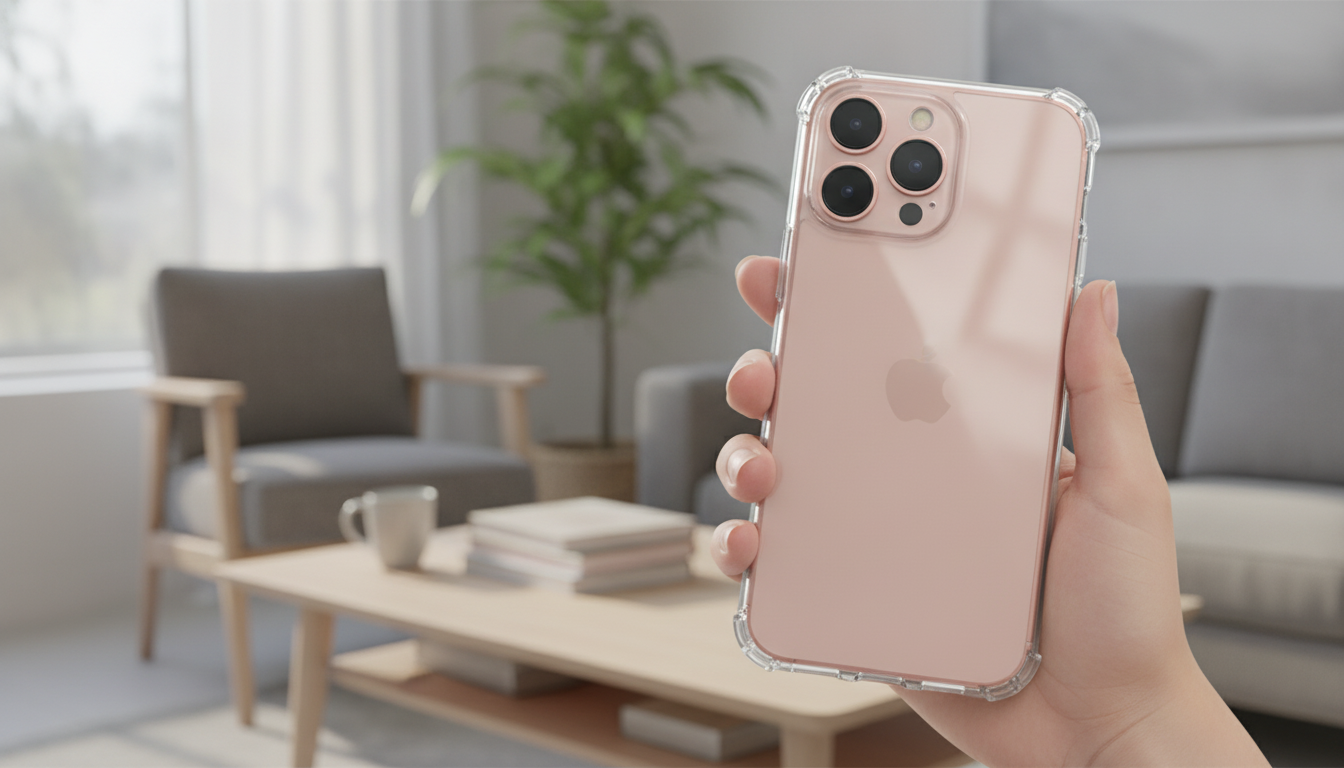
- Magnetic Clear Shockproof Case for iPhone 17 Pro & Pro Max ($10.97) — extra protection if your phone lives near your desk setup
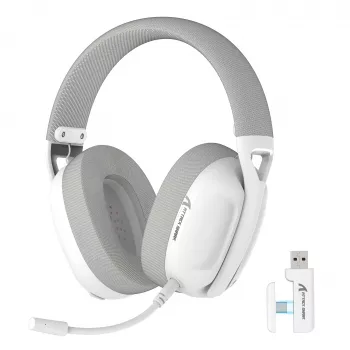
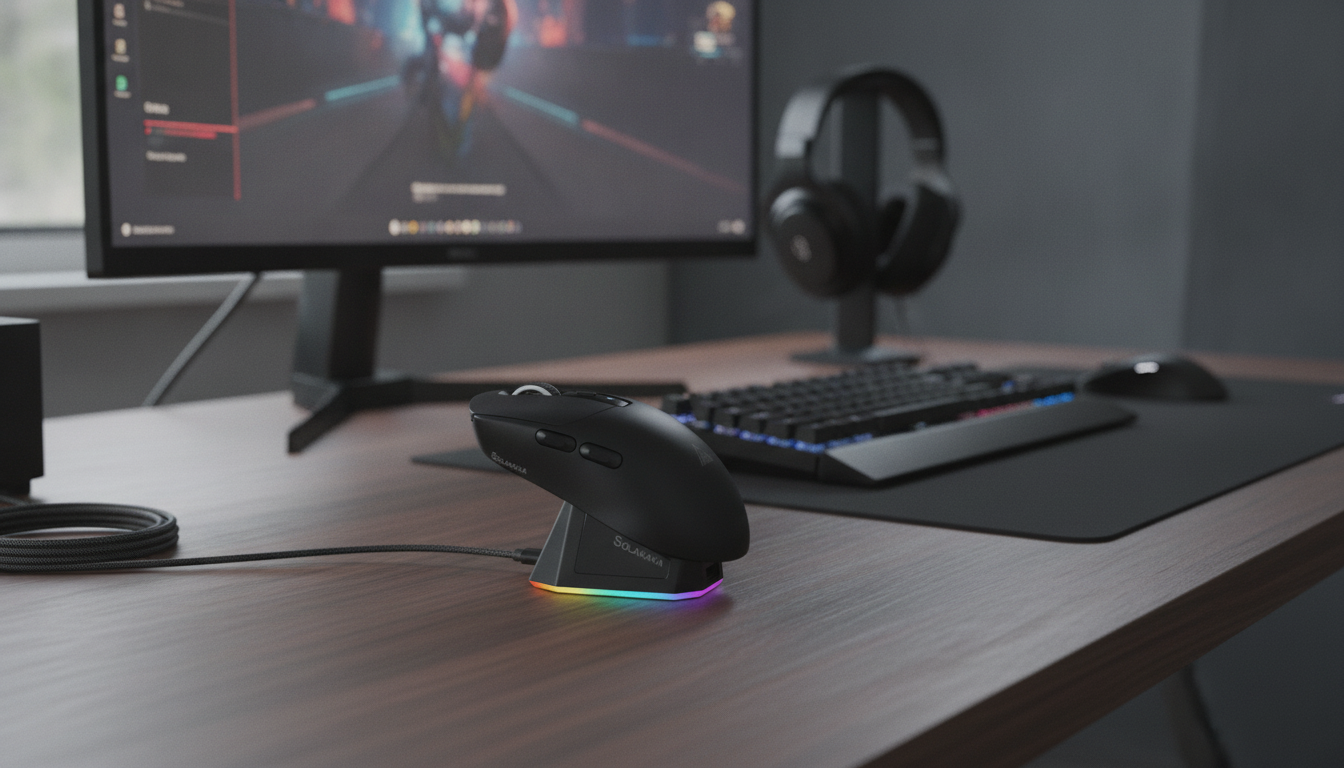
Compare related options such as Ultra-Light Tri-Mode Wireless Gaming Mouse with RGB Charging Dock to match features, dimensions, and use case before choosing.
FAQ
Does 7.1 surround sound work in every game?
Results depend on the game’s audio mix and how well it supports spatial cues, so some titles sound more natural than others. For the cleanest positioning, enable one surround/spatial solution at a time and test in a practice range or private match.
Will a USB wired gaming headset work on consoles?
USB headset support varies by console model and firmware, and some platforms handle chat/game audio differently over USB. Check your console’s USB audio compatibility details to confirm whether both game sound and voice chat are supported.
How should the detachable microphone be positioned for the clearest voice?
Place the mic about 1–2 inches from your mouth, slightly off-center near the corner, and speak across it rather than directly into it. Adjust input gain so your voice is strong without clipping, and back it down if background noise or hiss becomes noticeable.






Leave a comment